Resource Database
Introduction
The Resource Database manages project resources. It indexes each resource and maps it's GUID and behaviours.
A resource is defined by two things:
- It is a GameObject belonging to an Addressable prefab.
- It has a Resource Marker component.
Resources are intentionally very generic. This keeps the system simple, flexible, and scalable across different project types.
Setting Up a Resource
To set up a resource, first create a prefab that acts as the resource container.
- 3D Models and meshes
- Block models
- Raster and GeoJSON data
- Drillholes
These conventions are only used for organization. They are not strict rules and may vary between projects.
Make sure the root of the prefab is positioned at the origin, with no rotation and default scale:
Position: 0, 0, 0
Rotation: 0, 0, 0
Scale: 0, 0, 0
Make sure the prefab is addressable.
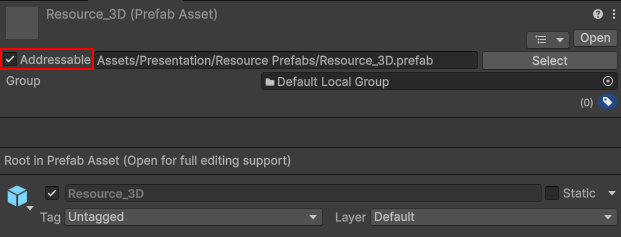
Once the container prefab is ready, add a child GameObject for the actual resource. Add any components, children, meshes, behaviours, or data needed for that resource.
Finally, add a Resource Marker component to the root of the resource GameObject.
Important: Do not nest Resource Markers. Nested Resource Markers are unsupported and may break runtime behaviour.
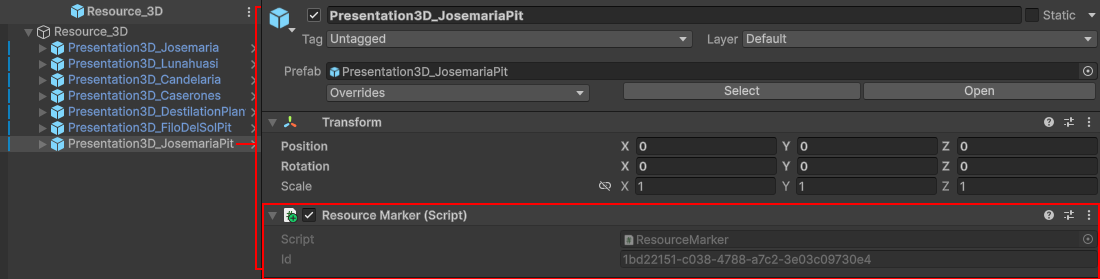
Setting Up Camera Points
Camera points are also handled as resources in the Resource Database, so the setup process is mostly the same as for regular resources.
The only difference is that camera points use a Camera Point Marker instead of a Resource Marker.
For more information about Camera Points see Camera Point Setup
Adding a Resource to the Resource Database
This guide is applicable to Camera Point Resources as well
Next, to register a resource we need to add the resource container prefab to the Resource Database.
Open the Resource Database asset and add the resource container prefab to the Prefabs list.
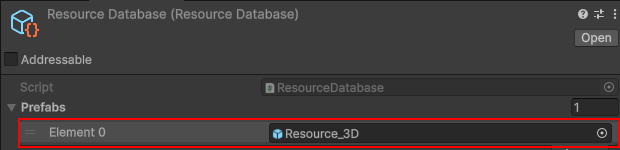
Then press Scan Prefabs in the Inspector.
This scans all registered prefabs, indexes the resources inside them, and maps their IDs and components so they can be used by the Presentation System.
You only need to press Scan Prefabs when adding a new resource container prefab to the list. Changes made inside an already registered resource container prefab are scanned automatically.