Creating New Clips
Before creating a clip, determine which track type it belongs to. If it fits an existing track type - such as an Action Track or Media Track - you only need to create the clip class itself. If it doesn't fit any existing type, you'll need to create a new track as well.
Creating an Action Clip
Action clips are instant clips - they fire at a single point in time with no duration. This example walks through creating a new one.
Example: Simple Debug Clip
This example creates a clip that logs a message to the console.
Create a new C# script in the ActionClips directory:
terrahutton-platform-package\Scripts\Runtime\PresentationTimeline\SequenceSystem\Clips\Implementations\ActionClips
Name it DebugLogClip.cs. It must inherit from ActionClip, be marked [Serializable], and use the correct namespace:
Terrahutton.PresentationTimeline.SequenceSystem.Clips.Implementations.ActionClips
Add a field for the message you want to log:
[Serializable]
public class DebugLogClip : ActionClip
{
    [SerializeField] private string _message;
}
Then override OnEnter() to log it:
[Serializable]
public class DebugLogClip : ActionClip
{
    [SerializeField] private string _message;

    protected override void OnEnter()
    {
        Debug.Log(_message);
    }
}
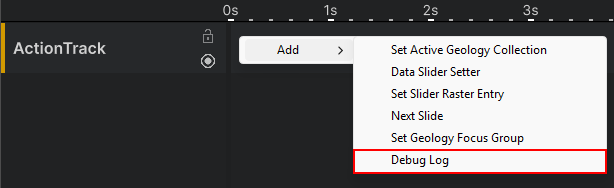
To test it, create a new slide, add an Action Track, then right-click the track body. The clip will appear in the Add context menu.
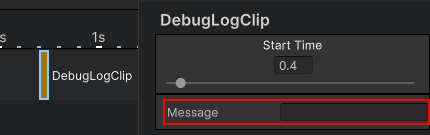
Place the clip on the track, select it, and edit the message field in the Stage Inspector on the right side of the editor.
Example: Set Geology Focus Group
A more practical and slightly more complex example. This walks through how SetGeologyFocusGroupClip - a clip that already exists in the system - was created.
This clip tells a GeologyDataManager to activate one of its focus groups, used for highlighting a subset of objects such as a set of drill holes within a drillhole collection.
What makes this example different from the previous one is that it needs to reference a resource from the resource database using a ResourceHandle.
Create a new C# script in the ActionClips directory:
terrahutton-platform-package\Scripts\Runtime\PresentationTimeline\SequenceSystem\Clips\Implementations\ActionClips
Name it SetGeologyFocusGroupClip.cs. It must inherit from ActionClip, be marked [Serializable], and use the correct namespace:
Terrahutton.PresentationTimeline.SequenceSystem.Clips.Implementations.ActionClips
Add two fields - a ResourceHandle targeting the GeologyDataManager, and an int for the focus group index:
[Serializable]
public class SetGeologyFocusGroupClip : ActionClip
{
    [SerializeField] private ResourceHandle<GeologyDataManager> _geologyDataManagerHandle;
    [SerializeField] private int _focusId;
}
Next, override OnInitialize(RuntimeSequence runtimeSequence). This method is called before the clip runs - the return value indicates whether initialization succeeded, which determines if the clip will execute.
Here we resolve the ResourceHandle and store the result in a field for use in OnEnter():
[Serializable]
public class SetGeologyFocusGroupClip : ActionClip
{
    [SerializeField] private ResourceHandle<GeologyDataManager> _geologyDataManagerHandle;
    [SerializeField] private int _focusId;

    // Resolved at runtime from the resource database
    private GeologyDataManager _geologyDataManager;

    protected override bool OnInitialize(RuntimeSequence runtimeSequence)
    {
        // Try to resolve the handle - if the resource is not found, the clip will not run
        if (_geologyDataManagerHandle.TryResolve(runtimeSequence.ResourceProvider, out _geologyDataManager))
            return true;

        return false;
    }
}
With the resource resolved, override OnEnter() to run the behaviour:
[Serializable]
public class SetGeologyFocusGroupClip : ActionClip
{
    [SerializeField] private ResourceHandle<GeologyDataManager> _geologyDataManagerHandle;
    [SerializeField] private int _focusId;

    private GeologyDataManager _geologyDataManager;

    protected override bool OnInitialize(RuntimeSequence runtimeSequence)
    {
        if (_geologyDataManagerHandle.TryResolve(runtimeSequence.ResourceProvider, out _geologyDataManager))
            return true;

        return false;
    }

    protected override void OnEnter()
    {
        base.OnEnter();

        // _geologyDataManager should always be valid here since OnInitialize guards against null,
        // but we check defensively in case of unexpected state.
        if (_geologyDataManager)
            _geologyDataManager.FocusGroupIndex(_focusId);
    }
}
For this example, a Drillhole (GeologyDataManager) resource has been set up in the Resource Database.
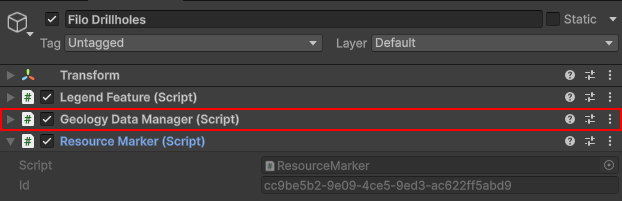
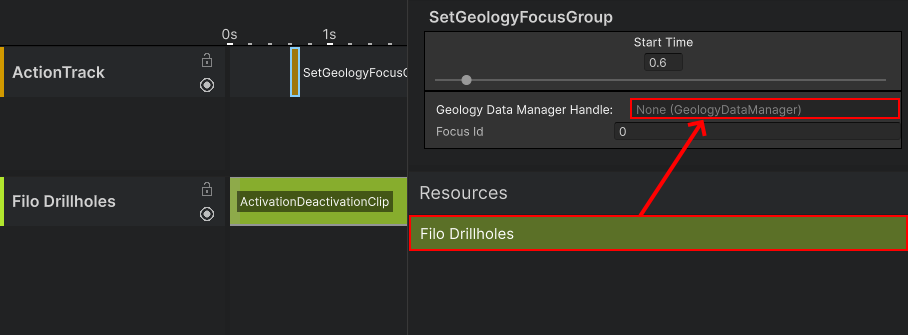
As in the previous example, create a new slide, add an Action Track, and place the clip on it. Make sure the resource is active during this slide, otherwise it cannot be referenced.
Select the clip to see the Geology Data Manager Handle field in the inspector. Drag and drop the resource onto this field to assign it.