Slides
Slides represent individual steps in the presentation. Each slide has its own timeline, which is authored in the Stage Panel.
Adding a Slide
Right-click anywhere in the Slide Timeline area and select Add Slide.
A new slide is appended to the end of the sequence.
Renaming a Slide
Press F2 on a selected slide, or right-click it and select Rename.
Type the new name and click away or press Enter to confirm.
Reordering Slides
Click and drag a slide left or right to reorder it.
Alternatively, right-click a slide and use Move Left or Move Right.
Note: Moving a slide also moves its associated resource spans. Resource spans are linked to slides by index, so their positions shift to follow the slide.
Removing a Slide
Right-click a slide and select Remove.
Note: Removing a slide removes all clips authored on that slide. Resource spans that extended into the removed slide are clamped to remain within the valid range.
Adding Description and Thumbnail
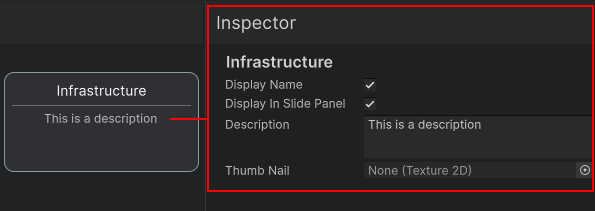
To configure slide metadata, left-click a slide to select it. This opens the slide in the inline Inspector inside the Deck Panel.
From the Inspector, you can edit:
- Description - Used only for authoring. This is not included in builds.
- Thumbnail - A
Texture2Dused as the slide thumbnail. - Display Name - Controls whether the slide name should be displayed when the slide is active.
- Display In Slide Panel - Controls whether the slide should appear in the runtime Slide Panel UI.
For more information about the UI options, see Runtime UI Overview