Stage Panel
The Stage Panel is the per-slide timeline editor. It is where you author the sequence of behaviours that plays when a slide becomes active - camera moves, resource activations, and any other clip-based actions.
Opening the Stage Panel
Double-click a slide in the Deck Panel to open it in the Stage Panel.
Use the back button in the toolbar to return to the Deck Panel. Any unsaved changes are held in the draft until you save or discard from the toolbar.
Tip: You can also press the
Escapeon your keyboard to return to the deck panel.
Layout
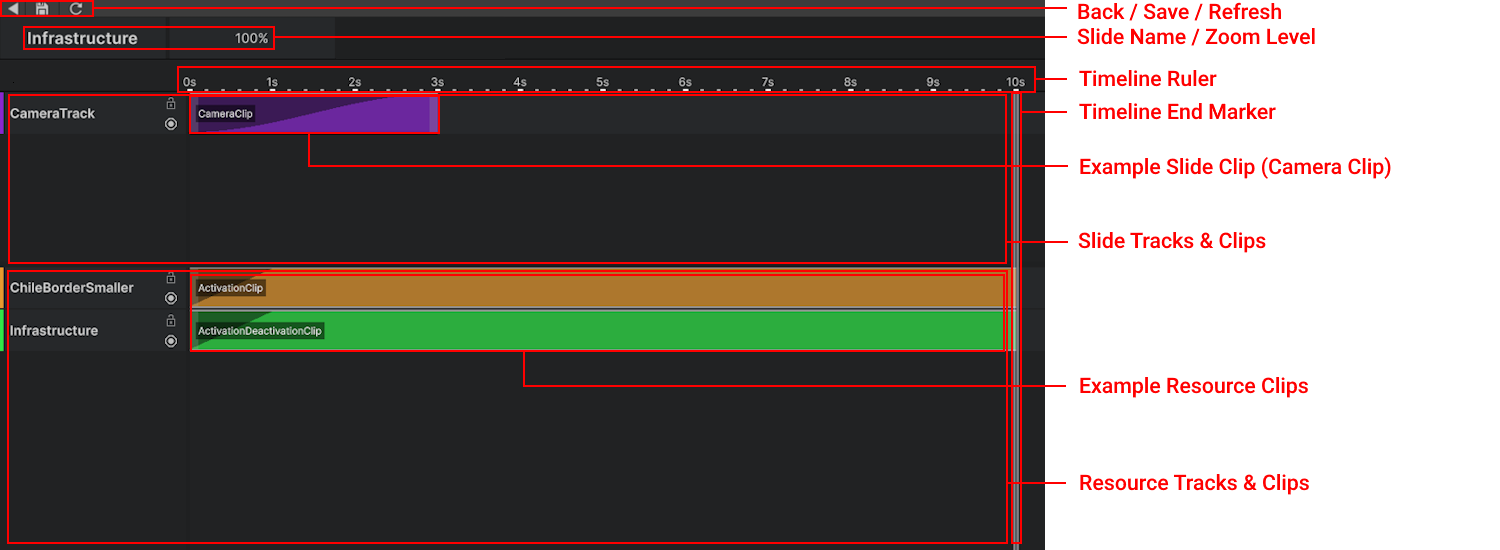
The toolbar at the top contains the Back, Save, and Refresh buttons as well as the Slide Name, and the current Zoom Level.
Below the toolbar is the Timeline Ruler, marked in seconds. A vertical End Marker at the right edge of the ruler indicates the total duration of the slide - clips cannot be placed beyond it.
The track area beneath the ruler is split into two sections:
- Slide Tracks & Clips - the upper section contains authored tracks such as Camera Tracks and Action Tracks, along with their clips.
- Resource Tracks & Clips - the lower section contains resource tracks managed automatically by the Presentation System.
Each track header on the left shows the track name, a lock button, and an enable toggle.
Zoom and Navigation
Use the scroll wheel zoom the timeline in or out.
Tip: If you have a horitzontal scroll wheel you can pan along the timeline.
Saving
Changes made in the Stage Panel are part of the same draft as the Deck Panel. Use the Save button in the toolbar to commit all changes across both panels, or Refresh to revert (reloads the presentation from disk).
Tip: You can use the shortcuts
CTRL + SorCTRL + Rto save and refresh respectively. (Command on Mac)
Breakpoints
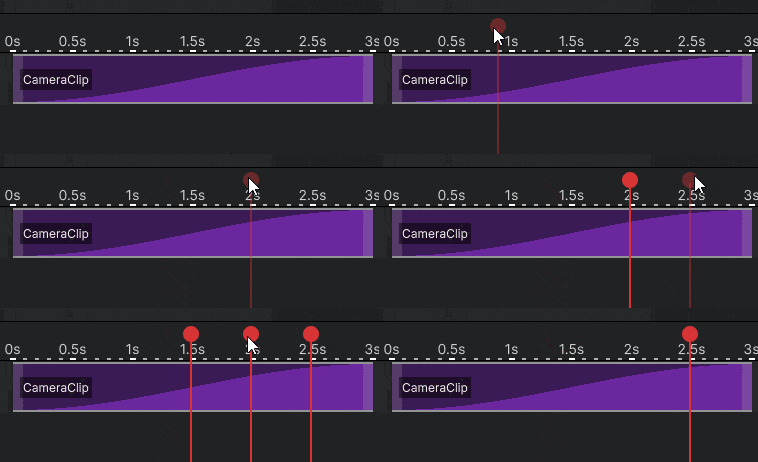
A breakpoint pauses the playhead when reached. Playback resumes once the presentation is told to proceed - either by user input or when autoplay is active. This is useful for creating pause points within a slide without adding a new slide.
To add a breakpoint, hover over the Timeline Ruler and left-click to place one. Click an existing breakpoint to remove it.