Tracks
Tracks are the named lanes of the slide timeline. Each track holds clips of a specific type and plays them back in sequence when the slide runs.
Track Types
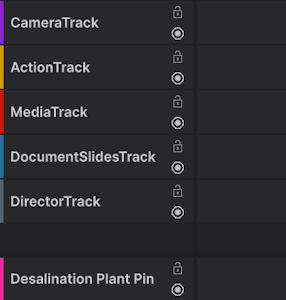
| Track | Color | Purpose |
|---|---|---|
| Camera Track | Purple | Holds camera clips that drive camera movement. |
| Action Track | Orange | Holds action clips for custom scripted behaviours. |
| Media Track | Red | Holds clips for media behaviours. Such as displaying images or videos on screen. |
| Document Slides Track | Blue | Holds clips for displaying slides using the Document Slide System. |
| Director Track | Gray | Not well defined, may be removed. |
| Resource Track | Color of the Resource | Holds activation and deactivation clips for a resource span. Managed automatically. |
Resource Tracks are created and removed by the Presentation System when resource spans are added or removed in the Deck Panel. They cannot be manually added, removed, or reordered.
See Resource Clips for more detail on Resource Tracks.
Adding a Track
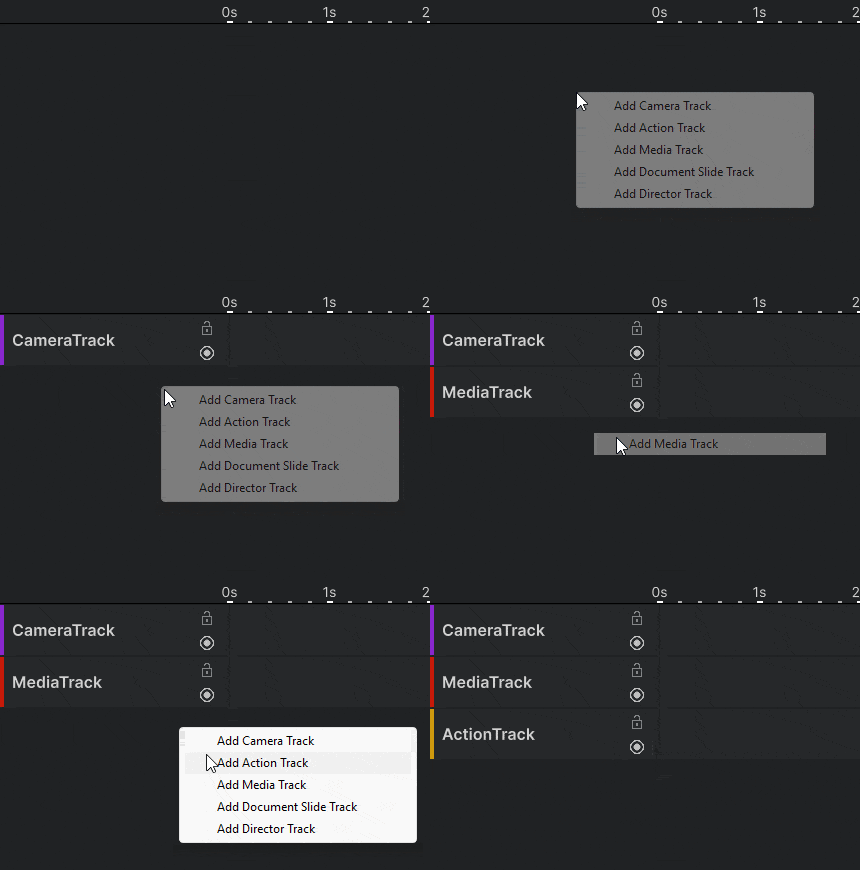
Right-click on an empty area of the Timeline to open the context menu, then select the track you want to add.
Removing a Track
Right-click a track header and select Remove.
This also removes all clips on that track. This option is not available on Resource Tracks.
Reordering Tracks
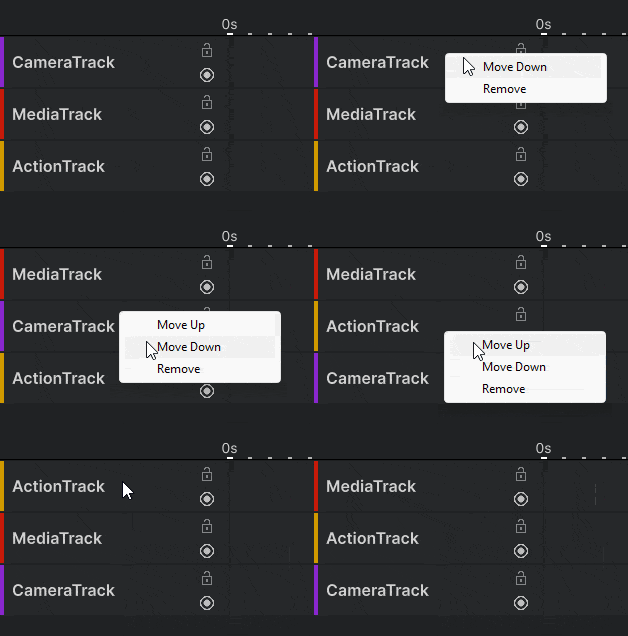
Right-click a track header and select Move Up or Move Down.
This option is not available on Resource Tracks.