Clips
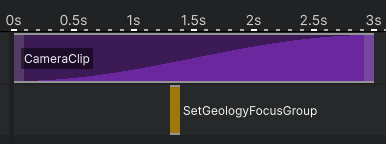
Clips are the individual units of behaviour placed on a track's timeline. When the slide plays, each clip executes when the playhead reaches it.
There are two kinds of clips:
- Duration clips - have a start time and an end time. They run for a period and support blend-in and blend-out.
- Instant clips - have only a single time point. They fire once and have no duration.
Adding a Clip
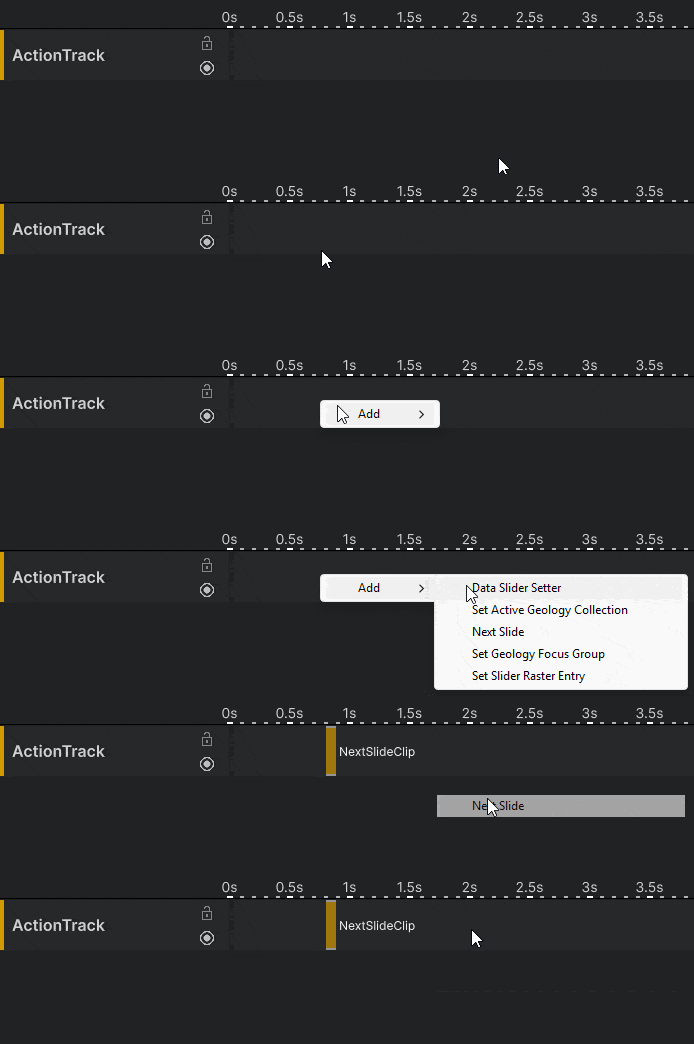
Right-click a track and select the clip type you want to add from the context menu. The available types depend on the track - each track only accepts its own clip type.
See Tracks for more information about tracks.
Moving and Resizing
Drag the body of a clip left or right to move it along the timeline. The clip snaps to nearby time intervals as you drag.
Duration clips have a left handle and a right handle. Drag either handle to adjust the start or end time. The clip snaps as you drag.
Instant clips cannot be resized.

Selecting a Clip
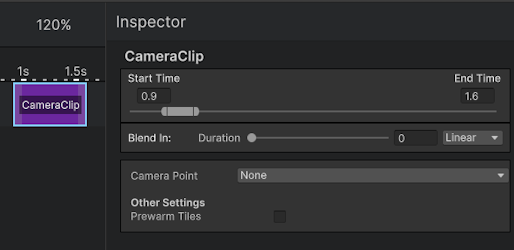
Left-click a clip to select it. This opens the clip's properties in the Unity Inspector, where you can edit type-specific settings such as blend curves, target resources, or camera parameters.
Blend In and Blend Out
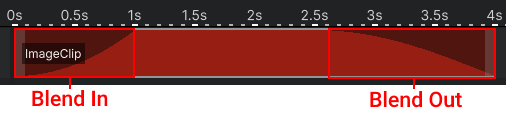
Duration clips that support blending have Blend In and Blend Out durations configurable in the Inspector. These control how the clip fades in at the start and fades out at the end. The tween curve can also be set per clip.
Removing a Clip
Right-click a clip and select Remove.