Resource Span
Resource Spans define when a resource should be active during a presentation.
A Resource Span has a start slide and an end slide. The resource is activated when the presentation reaches the start slide, remains active throughout the span, and is deactivated when the presentation reaches the end slide.
When a Resource Span overlaps with one or more slides, resource clips are added to the corresponding slides automatically.
For example:
- The start slide receives an Activation Clip.
- The end slide receives a Deactivation Clip.
- If the resource span only covers a single slide, that slide receives an Activation Deactivation Clip.
For more information, see Clips and Resource Clips

Adding a Resource Span
Resource spans are added by dragging a resource from the Resource Database Panel on the bottom into the Resource Timeline.
The slide column where you drop the resource determines the starting slide of the span. The span is initially one slide wide.
Resizing a Resource Span
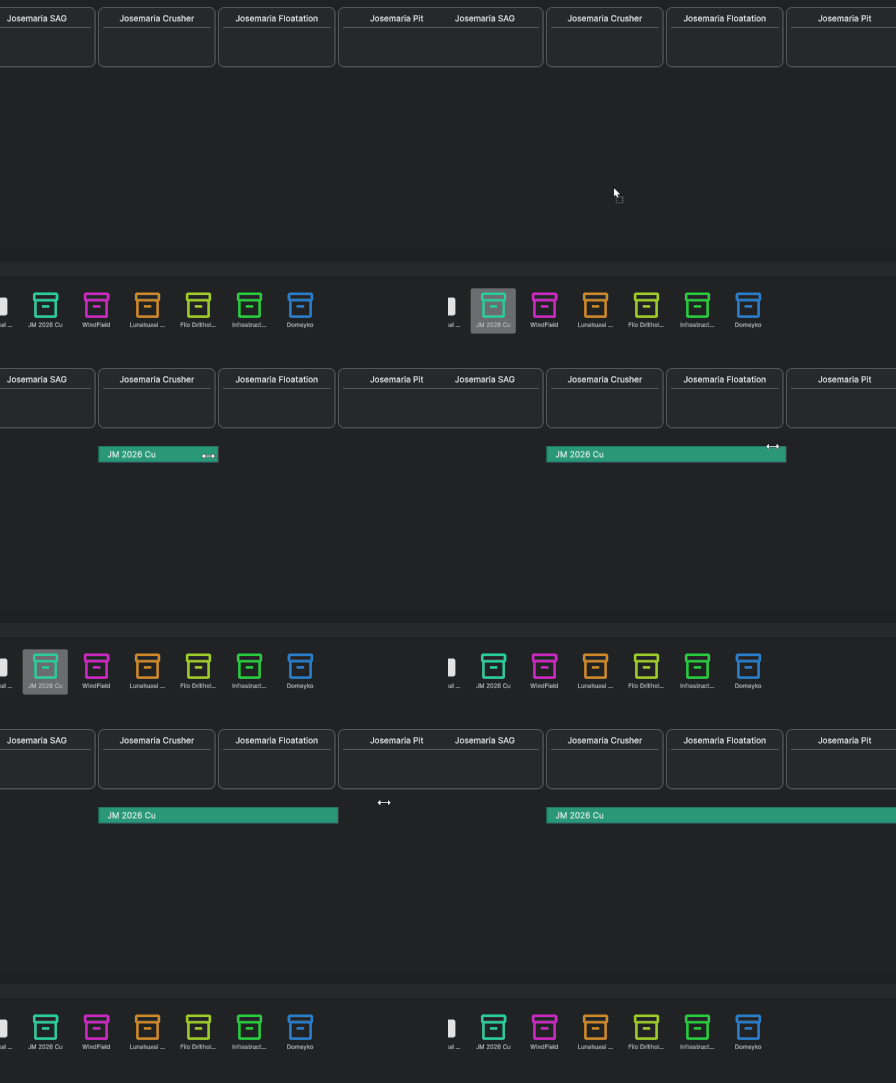
Each resource span has three drag handles:
- Left handle - drags the start slide of the span.
- Middle handle - moves the entire span left or right, preserving its length.
- Right handle - drags the end slide of the span.
Spans cannot overlap with another span for the same resource.
Removing a Resource Span
Right-click a resource span and select Remove.
This also removes the associated activation and deactivation clips from the relevant slides.